
Salesforce Data Backup: Recovering Deleted Records in 2026

Quick Answer
Recovering deleted Salesforce records in 2026 requires either a short response window or a purpose-built Salesforce backup and recovery platform — there is no middle ground. Salesforce's recycle bin gives you 15 days. After that, native recovery options are limited, expensive, and not guaranteed. Enterprise IT teams that recover deleted records quickly — days, weeks, or months after the deletion — do it through a purpose-built backup platform that retains deleted records in customer-controlled storage and restores them with relational integrity intact. Sesame Software's Backup Scheduler makes that recovery possible in minutes, not weeks. For organizations where Salesforce data security and compliance are non-negotiable, having that recovery capability in place before an incident occurs is the only defensible position.
Why deleted Salesforce records are harder to recover than most teams expect
Most Salesforce administrators know about the recycle bin. What they do not always know is how quickly the window closes — and what happens when it does.
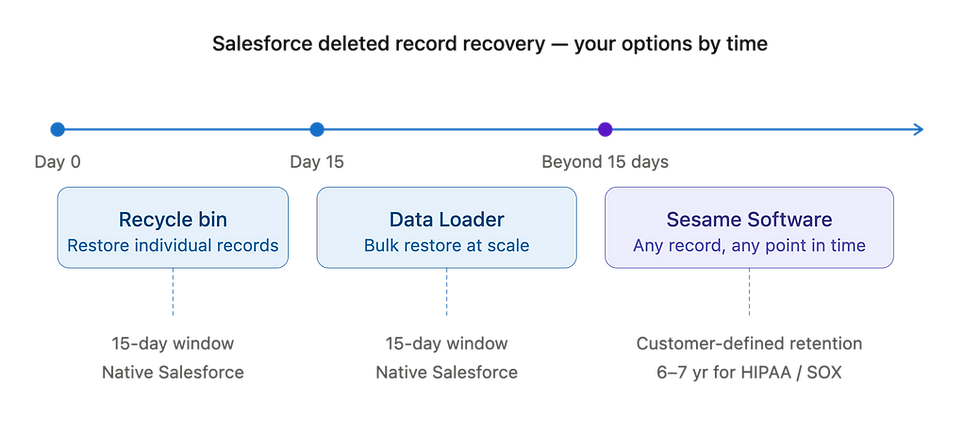
Salesforce soft-deletes records when a user or process removes them. The record moves to the recycle bin where it stays for 15 days. During that window, any user with the right permissions can restore it. After 15 days, Salesforce removes it from the platform entirely.
The 15-day window sounds reasonable until you consider how deletion incidents actually unfold in enterprise environments. A bulk operation removes thousands of records incorrectly. The team does not notice for three weeks because nobody reviews downstream reports daily. An integration deletes records during a failed sync. The error surfaces during a quarterly review — well past the recycle bin window. A departing employee deletes account records on their last day. The team discovers the deletion during a handover weeks later.
In each scenario, the recycle bin offers nothing. Only a backup platform that captured the records before deletion and retained them beyond the recycle bin lifecycle gives your team a recovery path.
Your recovery options — ranked by how recently the deletion occurred
Within 15 days — use the Salesforce recycle bin
If the deletion is recent, the recycle bin is your fastest path. Navigate to the recycle bin in Salesforce, locate the deleted records, select them, and click restore. Salesforce restores the records to their original location with most field values intact.
Watch for two limitations. First, if the recycle bin has exceeded its storage capacity — which happens during large bulk deletions — Salesforce permanently removes the oldest records to make space, regardless of whether they are within the 15-day window.
Second, restored records may not restore all related child records automatically. Verify that related Contacts, Opportunities, Cases, and other child objects came back correctly before closing the incident.
Within 15 days — use the bulk restore option for large deletions
For bulk deletion events affecting thousands of records, the standard recycle bin interface is slow and impractical. Salesforce's Data Loader supports bulk restore operations by exporting the deleted records from the recycle bin and re-importing them.
This approach is faster for large volumes but requires careful field mapping to avoid introducing new data quality issues during the restore.
Test the restored data in a sandbox environment before pushing to production when the deletion volume is significant. A bulk restore that introduces incorrect data compounds the original incident.
Beyond 15 days — you need a backup platform
Once Salesforce permanently removes a record, the only recovery path is a Salesforce backup and recovery platform that captured the record before or during the deletion event.
This is where most organizations discover they have a gap. Without a purpose-built backup platform running continuous automated backups, your team cannot recover the record. Salesforce's paid Data Recovery Service is available as a last resort — but it is expensive, takes weeks to execute, covers only certain data types, and does not guarantee full recovery. It is not a recovery strategy. It is an emergency service.
Sesame Software's Backup Scheduler retains deleted records in customer-controlled storage for the customer-defined retention period — six years, seven years, or whatever your compliance framework requires. Recovery of a record deleted six months ago is the same operation as recovery of a record deleted six hours ago — fast, precise, and complete.
How Sesame Software recovers deleted Salesforce records
Sesame Software's Salesforce backup and recovery process is designed for enterprise incident response — fast enough to meet operational urgency, precise enough to avoid collateral disruption, and accessible enough for non-technical team members to execute without IT support.
Step 1 — Identify the affected records and the deletion timestamp
Open the Sesame Software Backup Scheduler interface and navigate to the recovery section. Identify the object type affected — Accounts, Contacts, custom objects, or others. Your team uses the audit trail to identify when the deletion occurred and which records it affected. Sesame Software logs every deletion event with the record identifier, the user who triggered the deletion, and the timestamp — giving your team a precise starting point for recovery.
Step 2 — Select the restore point
Select the backup snapshot from immediately before the deletion event. Sesame Software's five-minute backup intervals mean the restore point is never more than five minutes before the deletion occurred. For deletions that happened weeks or months ago, browse the backup history to the relevant date and time and select the appropriate snapshot.
Step 3 — Choose your restore scope
Sesame Software's granular restore operates at multiple levels. For individual record recovery, select the specific records to restore. For bulk deletion events affecting a large set of records, use object-level restore to recover the full affected dataset efficiently. When an incident affects only specific field values, use field-level restore to recover those values without touching surrounding data.
Step 4 — Validate in sandbox before restoring to production
For large-scale recovery operations, validate the restore in a sandbox environment first. Confirm that the recovered records contain the correct field values, that related child records are intact, and that no conflicts exist with records created in the production org after the deletion event. Sesame Software preserves parent-child relational integrity automatically — restoring an Account restores its associated Contacts, Opportunities, and Cases — but verifying this in sandbox before production gives your team confidence in the recovery before it goes live.
Step 5 — Execute the production restore and verify
Execute the production restore during a scheduled maintenance window where possible. Monitor the restored records immediately after recovery — confirm field values, verify related records, and check that downstream systems depending on the recovered data function correctly. Document the restore operation in your incident log, including the restore scope, the restore point used, and the outcome.

Recovering deleted records with compliance obligations
For organizations where Salesforce data security and compliance obligations include HIPAA, GDPR, or SOX, deleted record recovery is not just an operational event. It is a compliance event that requires documentation.
HIPAA requires covered entities to maintain retrievable exact copies of ePHI. When your team deletes and recovers ePHI records, document the full recovery process — what was recovered, from what point in time, by whom, and with what outcome — in the compliance record. Sesame Software's restore logs capture all of this automatically and store it in the customer's own environment.
GDPR's right to erasure requires your team to ensure that records deleted in response to a data subject erasure request are never restored from backup. Sesame Software's governed erasure workflow supports this by flagging records subject to erasure requests so that recovery operations do not inadvertently restore data that was intentionally and legally deleted.
SOX compliance for Salesforce environments containing financial data requires that deleted records affecting financial reporting are recoverable and that both the deletion and recovery events are documented in the audit trail. Sesame Software's complete deletion event logging and restore documentation satisfy this requirement.
Preventing the deletion incidents that require recovery

The best recovery is the one you do not need — and the best Salesforce data security and compliance posture is one that reduces the frequency of deletion incidents before they require recovery.
While Sesame Software makes recovery fast and precise, reducing the frequency of deletion incidents is equally important.
Configure field-level security to restrict delete permissions on critical objects. Not every Salesforce user needs the ability to delete Account records or close Opportunities. Applying the principle of least privilege to delete permissions reduces the exposure surface for accidental and malicious deletions.
Configure Salesforce to alert administrators when a significant number of records are deleted within a short window — giving your team an early warning that catches bulk deletion events before the recycle bin window closes.
Use data import validation rules before running bulk operations. Bad data imports and bulk updates are the most common source of large-scale record corruption and accidental deletion. Validate import files against a sandbox environment before running them in production. Trigger a manual backup immediately before any bulk operation so your team captures the pre-operation state at the closest possible point.
Train users on deletion consequences. Most accidental deletions happen because users do not understand that deleting a parent record deletes its child records too. Brief training on Salesforce's cascade delete behavior reduces the frequency of the incidents that generate the most complex recovery requirements.
For a complete framework covering access controls, encryption, audit logging, and data loss prevention across your Salesforce org, download our DLP checklist.
Why Sesame Software is the right platform for Salesforce record recovery
Sesame Software's Backup Scheduler gives enterprise IT teams the Salesforce data security and compliance infrastructure that makes deleted record recovery fast, precise, and audit-ready — regardless of when the deletion occurred.
Automated backups run as frequently as every five minutes, creating a continuous recovery timeline across your entire Salesforce org. Sesame Software retains deleted records in customer-controlled storage for the customer-defined retention period — not limited to the 15-day recycle bin window. Point-in-time restore at the record level, field level, and value level matches recovery precision to incident scope. Relational integrity preserves parent-child relationships automatically on every restore. Complete deletion event logging satisfies compliance documentation requirements for HIPAA, GDPR, and SOX.
The customer-hosted architecture keeps all backup data inside your own environment. Sesame Software never stores or accesses your backup data. Sesame Software encrypts all data in transit using TLS 1.3 and at rest using AES-256.
With 23+ years of enterprise data management expertise and a customer base that includes Procter & Gamble, Bank of America, and the U.S. Government, Sesame Software scales to enterprise data volumes without performance degradation — and without billing surprises, thanks to predictable connector-based annual pricing that never grows with your record counts.

Salesforce Data Security and Compliance Frequently Asked Questions
How do I recover deleted Salesforce records?
If the deletion occurred within the last 15 days, use the Salesforce recycle bin to restore records directly. For bulk deletions, use Salesforce's Data Loader to restore at scale. For deletions that occurred more than 15 days ago, your team needs a Salesforce backup and recovery platform that retained the deleted records beyond the recycle bin window. Sesame Software's Backup Scheduler retains deleted records for the customer-defined retention period and restores them through a visual interface in minutes.
What happens to Salesforce records after the recycle bin empties?
Salesforce permanently removes records after 15 days in the recycle bin. After permanent removal, there is no native recovery path. Salesforce's paid Data Recovery Service is available as a last resort but is expensive, slow, and not guaranteed to recover all data. A purpose-built backup platform that captured the records before deletion is the only reliable recovery path once the recycle bin window closes.
Can I recover a Salesforce record deleted months ago?
Yes — if your organization has a backup platform that retained the record beyond the recycle bin window. Sesame Software retains deleted records in customer-controlled storage for the customer-defined retention period — six years for HIPAA environments, seven years for SOX, or any period your compliance framework requires. Recovery of a record deleted six months ago is the same operation as recovery of a record deleted six hours ago.
Does recovering deleted Salesforce records restore related child records?With
With Sesame Software, yes. Sesame Software's point-in-time restore preserves parent-child relational integrity automatically. Restoring an Account restores its associated Contacts, Opportunities, and Cases. Restoring an Opportunity restores its Opportunity Line Items. Salesforce's native recycle bin restore does not always restore child records automatically — verify related records after any native recycle bin restoration.
How does deleted record recovery work under GDPR?
GDPR's right to erasure requires your team to ensure that records deleted in response to a data subject erasure request are never restored from backup. Sesame Software's governed erasure workflow flags records subject to erasure requests so that recovery operations do not inadvertently restore intentionally deleted personal data. For records deleted accidentally or incorrectly — not in response to an erasure request — recovery proceeds normally with full compliance documentation.
How long does Salesforce record recovery take with Sesame Software?
Individual record recovery takes minutes through Sesame Software's visual interface. Large-scale recovery operations — bulk deletions affecting thousands of records — take longer depending on data volume but are significantly faster than Salesforce's native Data Recovery Service, which takes weeks. Sesame Software's sandbox validation step adds time before production restore but reduces the risk of
Found this post helpful? Share it with your network using the links below.


